Saved Searches
Save your frequently used search filters to quickly find bills matching your criteria. Saved searches can also notify you when new bills match your parameters.
What Are Saved Searches?
Saved searches let you:
- Store filter combinations for quick access
- Get alerts when new bills match your criteria
- Monitor topics without manually tracking every bill
- Organize monitoring by project or priority
Creating a Saved Search
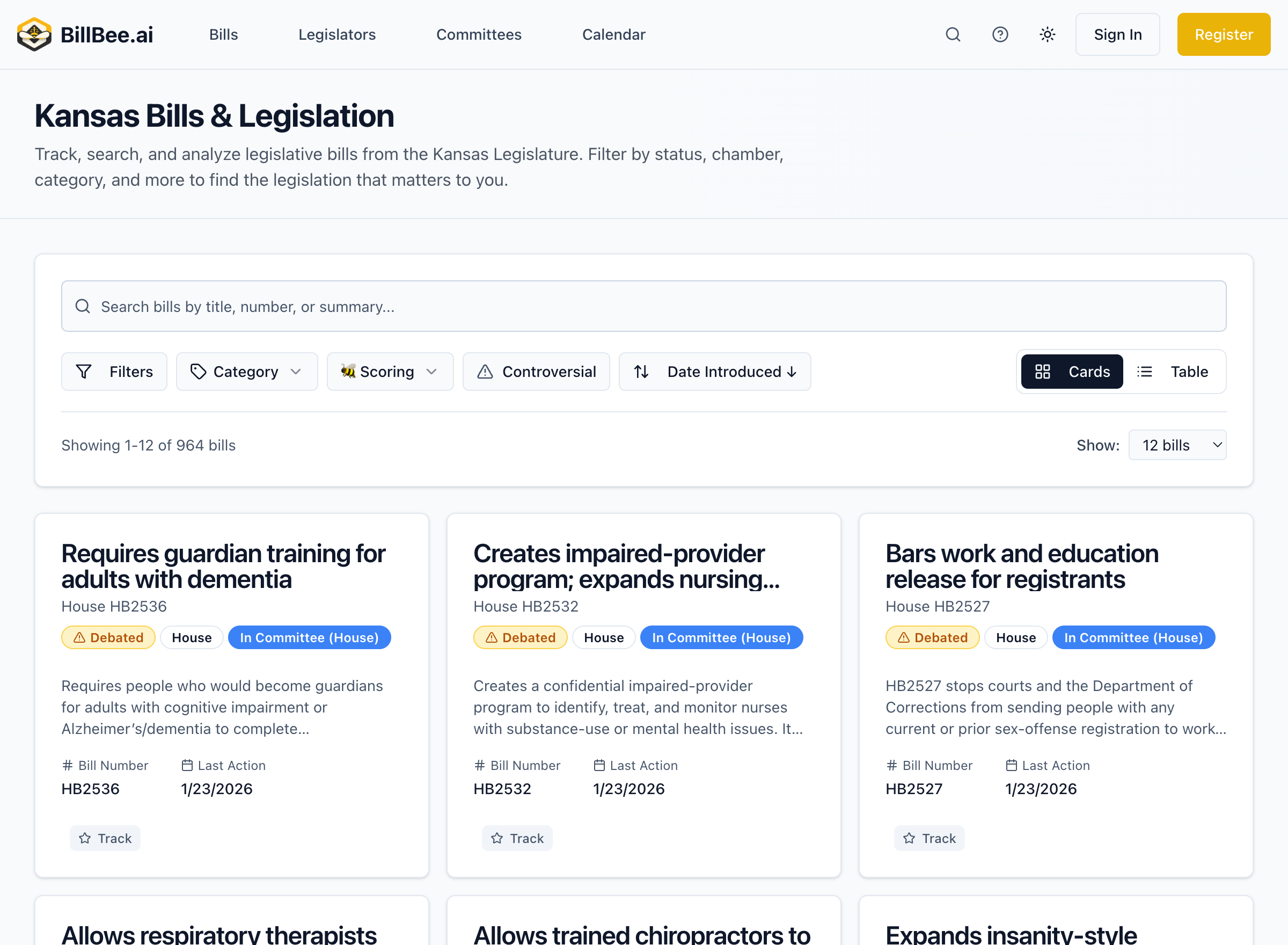
From Search Results
- Go to Bills and apply your desired filters
- Click Save Search
- Enter a name for your search
- Configure alert options
- Click Save
Filter Options to Save
Any combination of filters can be saved:
- Keywords - Text search terms
- Chamber - House, Senate, or both
- Status - Introduced, in committee, passed, etc.
- BeeScore - Impact level (Low, Medium, High)
- Policy Category - Subject area filters
- Sponsor - Specific legislators
- Date Range - Introduction or last action dates
Managing Saved Searches
Viewing Saved Searches
- Go to Dashboard or Bills
- Click Saved Searches
- View all your saved searches
Running a Saved Search
- Select a saved search from your list
- Click to apply those filters instantly
- View matching bills
Editing a Saved Search
- Open your saved searches
- Click Edit on the search you want to change
- Modify filters or settings
- Click Save
Deleting a Saved Search
- Open your saved searches
- Click Delete on the search to remove
- Confirm deletion
Saved Search Limits
Plan Limits Apply
The number of saved searches depends on your subscription tier. Compare plans.
- Free Plan: Up to 2 saved searches
- Citizen Plan: Up to 10 saved searches
- Professional Plan: Unlimited saved searches
Tips for Effective Saved Searches
- Name clearly - Use descriptive names like "Healthcare - High Impact" not "Search 1"
- Start broad, then narrow - Begin with wider filters, then refine
- Combine with tracking - Use saved searches to find bills, then track the important ones
- Review periodically - Delete outdated searches to keep your list manageable
- Use for different purposes - Separate searches for different clients, topics, or priorities